

Exclude bot and AI bot traffic from all stats
Bot traffic is non-human activity on your website or app: search engine crawlers, SEO research tools such as AhrefsBot or SemrushBot, scrapers, uptime monitors, and — increasingly — AI crawlers and AI assistants. Left unfiltered, it inflates visitor and pageview counts and distorts engagement and conversion metrics.
Usermaven gives you a set of independent exclusions you can combine, so you can remove automated traffic without also removing AI bot traffic, and the other way round. This article explains each option on the Exclude Traffic page: what it does, how it behaves, and when to use it.
How to reach the Exclude Traffic page
Log in to Usermaven.
Click Workspace Settings in the top-right corner.
Select Exclude Traffic from the left-hand menu, under WORKSPACE SETTINGS.
The page is at /env/<workspace>/settings/exclude_traffic, and its browser tab title is Exclude Traffic. You need the workspace settings view permission to open it, and edit permission to change any option.
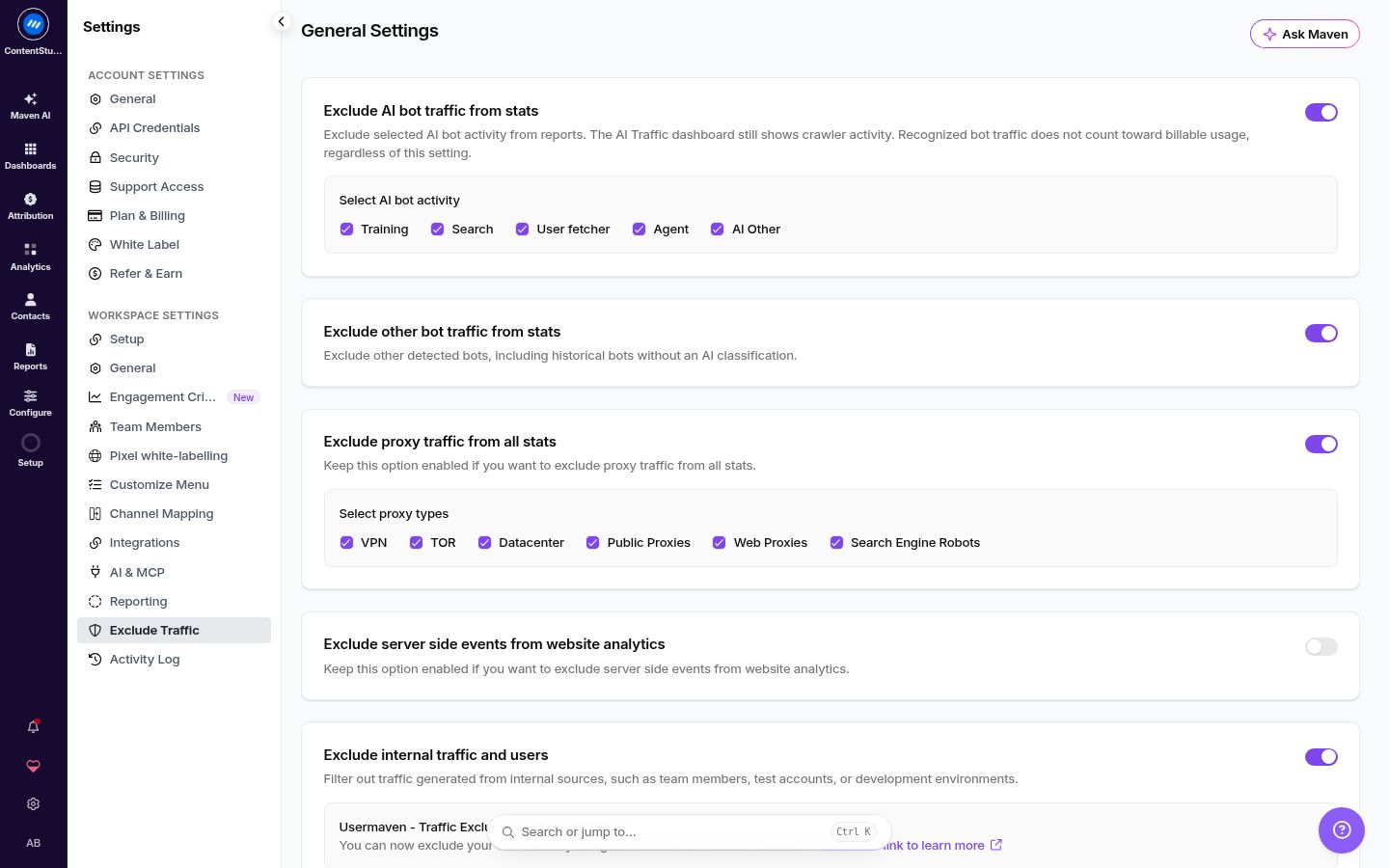
What is on the page
The page has five stacked cards. They are independent — turning one on does not turn another off. The AI bot card sits at the top, because it is the one people most often want to change on its own.
Card | What it filters |
|---|---|
Exclude AI bot traffic from stats | AI crawlers and AI assistants, by category |
Exclude other bot traffic from stats | All other detected bots, including historical bots with no AI classification |
Exclude proxy traffic from all stats | VPN, TOR, datacenter, public proxy, web proxy and search engine robot traffic |
Exclude server side events from website analytics | Events your server sends through the API |
Exclude internal traffic and users | Your own team, test accounts, and development environments |
Exclude AI bot traffic
Turn on Exclude AI bot traffic from stats to keep selected AI bot activity out of your reports.
With the switch on, a panel expands with five checkboxes under Select AI bot activity:
Category | What it covers | Examples |
|---|---|---|
Training | Crawlers collecting pages to train a model | GPTBot, ClaudeBot |
Search | Crawlers indexing content for AI search and AI answers | OAI-SearchBot, PerplexityBot |
User fetcher | A page fetched because a person asked an AI assistant to read it | ChatGPT-User, Perplexity-User |
Agent | AI agent traffic | — |
AI Other | Traffic attributed to a recognised AI provider without a more specific category — see the AI Other note below | — |

How the switch and checkboxes interact
With the switch on, only the checked categories are excluded. The switch alone excludes nothing.
If you uncheck all five, no AI bot traffic is excluded.
With the switch off, AI bot traffic stays in your reports.
Things worth knowing
The AI Traffic dashboard is unaffected. It keeps showing crawler activity whichever categories you exclude here. This setting applies to your other reports, so you can strip AI traffic from your headline numbers while still monitoring what AI crawlers read.
Recognised bot traffic never counts toward billable usage, whether or not you exclude it.
Defaults: workspaces that existed before the two bot switches were split keep the bot preference they already had. New workspaces start with the switch on and all five categories selected.
Some traffic shown as AI Other is controlled by Exclude other bot traffic, not the AI Other checkbox. Bot identification improved after these visits were recorded, so older traffic can now display a bot name and provider that were not stored at the time. Its original category was deliberately left unchanged so past visitor counts stay the same. The checkboxes here read the category stored when an event was recorded, so that older traffic stays under Exclude other bot traffic. Traffic classified as AI Other from now on is controlled by the AI Other checkbox.
CCBot and similar generic crawlers are filtered by Exclude other bot traffic, not by the AI Training checkbox.
Exclude other bot traffic
Exclude other bot traffic from stats removes every other detected bot from your reports, including historical bot traffic recorded before Usermaven classified AI bots.

This is the renamed original switch. Older instructions and older versions of this article call it "Exclude bot traffic from all stats" — it is the same setting under a clearer name, and the AI categories now sit in their own card above it.
Leave it on unless you specifically want non-AI bots counted. It is the switch that keeps your historical numbers consistent, because it also covers traffic recorded before AI bots were classified.
Exclude proxy traffic
Turn on Exclude proxy traffic from all stats to filter traffic that arrives through intermediary servers rather than directly from a visitor's device. With the switch on, you choose which proxy types to exclude:
Proxy type | What it is | Why it affects your analytics |
|---|---|---|
VPN | Services that encrypt a connection and route it through servers elsewhere | Masks a visitor's true location, so geography can be wrong. Also removes legitimate privacy-conscious users and remote employees. |
TOR | A volunteer-run anonymity network | Origin is effectively untraceable, so these visits rarely represent typical behaviour. |
Datacenter | IP ranges belonging to cloud providers and data centers | Often automated processes, bots, or large-scale scraping. Some legitimate B2B visitors arrive through corporate networks on datacenter IPs. |
Public Proxies | Openly available proxy servers anyone can use | Frequently used for non-genuine traffic; skews geography and inflates unique visitor counts. |
Web Proxies | Browser-based services that hide a visitor's IP | Similar to public proxies; often used to bypass geo-restrictions or workplace filters. |
Search Engine Robots | Automated crawlers from search engines indexing your site | Essential for SEO, but inflates traffic and engagement metrics. Keep it visible if you monitor crawl rate. |

Things worth knowing
Proxy exclusion is independent of the bot switches. It filters the types you select whether or not bot exclusion is on.
This behaviour changed. Proxy exclusion used to apply only when the general bot exclusion was also on. It now works on its own, so if you had proxy exclusion enabled and bot exclusion disabled, your reports may show lower traffic than before. That is the fix working, not a loss of data.
Bot status can mask proxy type. Traffic already flagged as a bot has its proxy type hidden at ingestion, so filtering cannot recover that detail. The existing server-side event exception also still applies.
When in doubt, start with the most obvious non-human sources — datacenter and public proxies — and review your numbers before adding more.
Exclude server side events
Exclude server side events from website analytics keeps events your server sends through the Usermaven API out of your website analytics.
Turn it on when server-side events duplicate what the browser already reports, or when back-end activity would otherwise be counted as website traffic. Leave it off if your server-side events are the only record of conversions you care about — excluding them removes them from website reports.
Exclude internal traffic and users
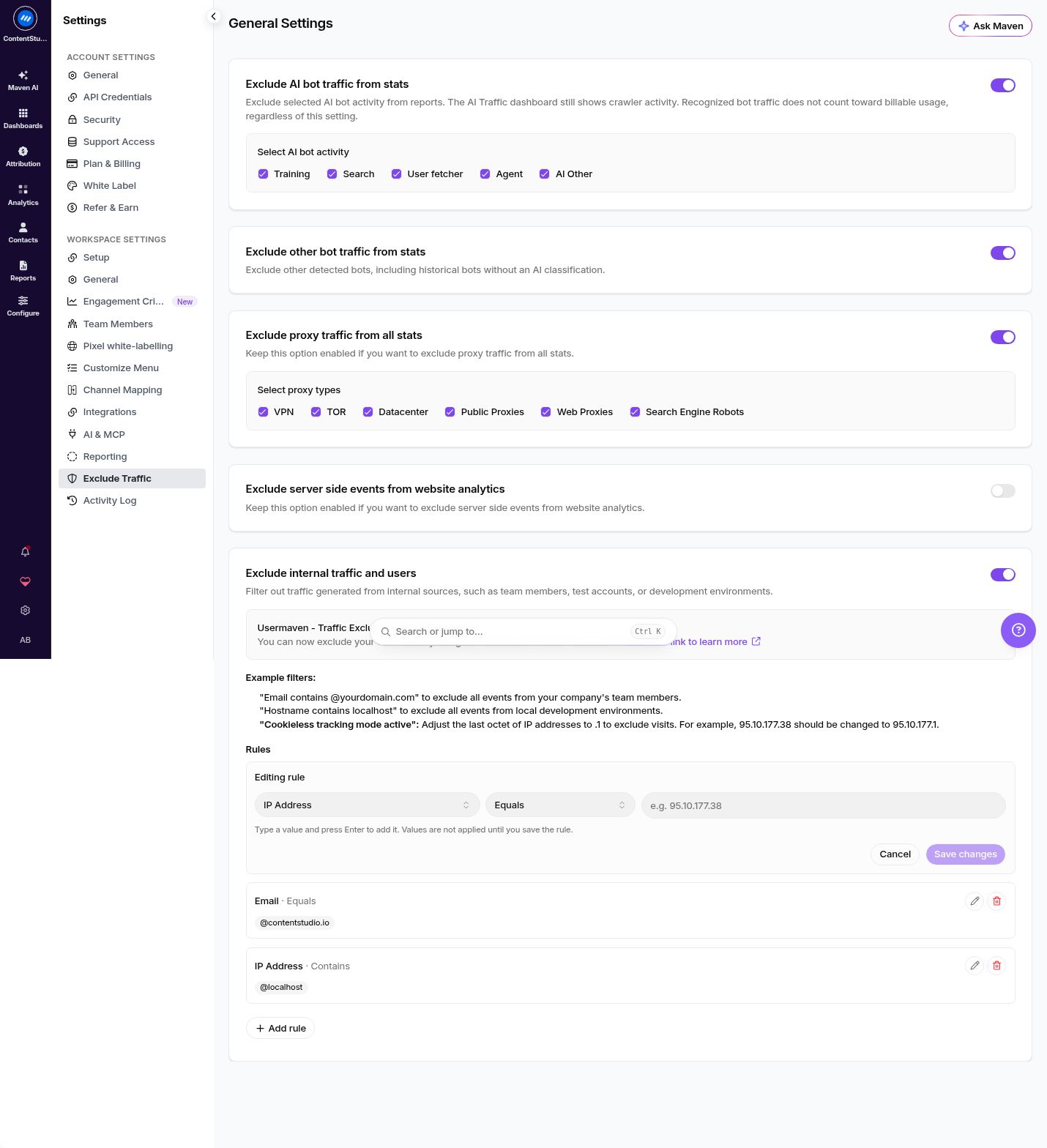
Exclude internal traffic and users filters out traffic from internal sources — team members, test accounts, and development environments. The card also links to the Usermaven - Traffic Exclusion Chrome Extension, which excludes your own visits in one click.
Using the Chrome extension
Install Usermaven Traffic Exclusion from the Chrome Web Store.
Activate the extension.
Visit your website and click the extension icon to enable exclusion for your browser.
Adding rules
Turn the switch on, then click Add rule. Each rule combines three parts:
Type —
IP Address,Hostname, orEmailOperator —
EqualsorContainsValues — one or more values; you can type new ones directly into the list
Rules are saved individually and can be edited or deleted afterwards. Until the switch is on, the rules area stays disabled.
Example rules from the page
Rule | Effect |
|---|---|
| Excludes all events from your company's team members |
| Excludes all events from local development environments |
Cookieless tracking mode active | Change the last octet of the IP address to |
Which exclusions do I need?
Goal | What to turn on |
|---|---|
Remove AI crawlers and assistants, keep search engine bots | Exclude AI bot traffic, with the categories you want checked |
Remove search engine bots and other crawlers, keep AI bot traffic | Exclude other bot traffic |
Remove all automated traffic | Both bot switches |
Keep automation out of reports but still monitor what AI crawlers read | Exclude AI bot traffic — the AI Traffic dashboard still shows crawler activity |
Remove trips through VPNs and data centers | Exclude proxy traffic, with the types you want |
Remove your own team's visits | Exclude internal traffic and users, plus the Chrome extension for your own browser |
Stop server-side events inflating site traffic | Exclude server side events |
Why your counts can change
Every exclusion on this page lowers reported traffic compared with leaving it off, and a step change in pageviews or visitors right after you enable one is expected.
AI data specifically moves in both directions: AI requests previously counted as ordinary visits drop out of your reports, while crawlers that were not recognised before — Apple's, for example — now appear on the AI Traffic dashboard. The proxy fix described above can also lower traffic for workspaces that already had proxy exclusion switched on.
If you compare Usermaven against another analytics tool, note which exclusions each one has enabled before treating a gap as a problem — see Why your Usermaven numbers differ from GA4.
Related reading
Was this article helpful?